

Tutorial: Create a Photo Backdrop in Seconds with Photoshop

January 20th, 2009  |  Published in Featured, Tutorials  |  8 Comments

This tutorial shows how to create a classic painted muslin backdrop with Photoshop.

This tutorial shows how to create a classic painted muslin backdrop with Photoshop.

In less than a minute, you can create a stunning background for your portraits, using the tools that come with Photoshop. This will not only save you money (those muslin backdrops don’t come cheap!), but will allow you greater flexibility. You can easily create the right color, mood, and texture backdrop for a particular portrait. As you create them, you’ll begin to accumulate a handy collection, saving you even more time down the road. Let’s get started, and see how easy it is.
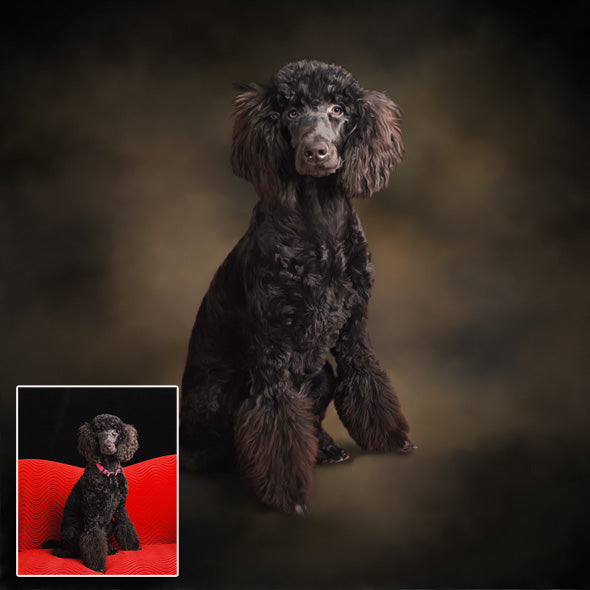
The main tool for this is the Clouds filter (Filter > Render > Clouds), which has been part of Photoshop since version 5. This filter creates “clouds” (a randomly-generated fractal pattern) using the foreground and background colors, so pick the colors for your background first. It seems to use background and foreground equally, so it doesn’t matter which is which. For this portrait, I started out with blue and black. First, create a new image, and make it the size you’ll need for your portrait. Next, draw a rectangle with the rectangle marquee tool, and keep it about a third of the size of the image. The reason you do this is to keep the clouds from having too much detail. With the marquee selected, and your foreground and background colors set, go Filter > Render > Clouds. Click the “V” key to select the move tool, and turn on “Show Transform Controls”, in the top tool bar. This makes the sizing handles appear. Now grab the corners and stretch the clouds to fill the image area.
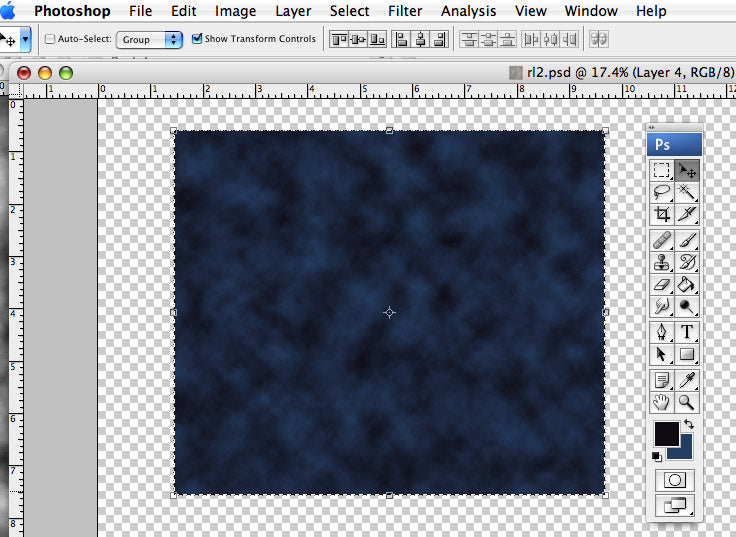
After drawing out the rectangular selection, apply the Clouds filter. Then hit the \"V\" key, and click the checkbox (shown) for \"Show Transform Controls.\"

After drawing out the rectangular selection, apply the Clouds filter. Then hit the V key, and click the checkbox (shown) for Show Transform Controls.

If you decide you need to change the coloration, just add a Hue/Saturation Adjustment Layer (Layer > New Adjustment > Hue/Saturation…), and move the Hue slider to change the colors.


To complete the formal backdrop look, add some vignetted lighting. With the clouds layer selected, go Filter > Render > Lighting Effects, and choose the Soft Omni light. You can leave it white, or further adjust the coloring by tinting the light’s color here.
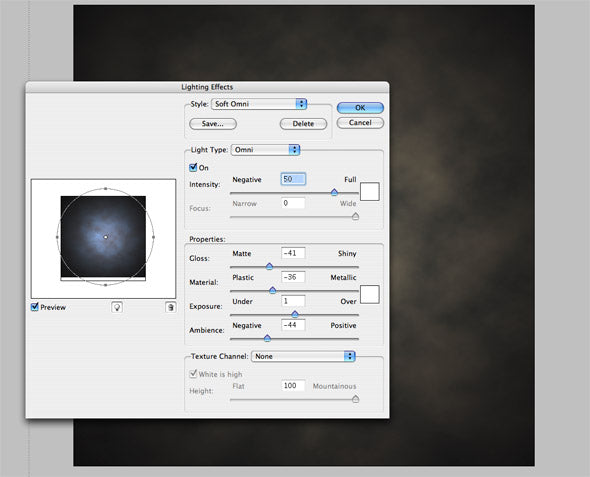
The lighting effects can be used to darken the corners and edges, as in traditional photography.

The lighting effects can be used to darken the corners and edges, as in traditional photography.

Alternative Looks for Your Backdrops

Now that we’ve looked at the basic, formal backdrop, I’ll show you a few variations to get your imagination working. This first example was created as follows:

  • Create a clouds layer using a green and a gold as foreground and background
  • Create a second clouds layer using a red-brown and a navy blue. Lower the opacity of this layer to less than 50%, so the first layer “mixes” in
  • Combine these layers (with Layer > Merge Layers, or by combining them as a Smart Object)
  • Apply Noise, just enough to create a grainy appearance. (Filter > Noise > Add Noise)
  • Use a Motion Blur at a 45 degree angle (Filter > Blur > Motion Blur). Try varying the length of the blur.
  • Apply the Soft Omni light, as in the first example. (Filter > Render > Lighting Effects)
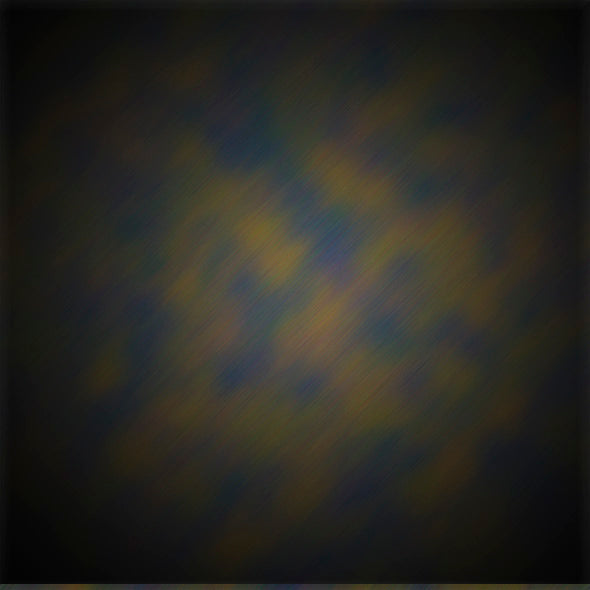
Four colors plus Noise plus the Motion Blur gives a different effect.

Four colors plus Noise plus the Motion Blur gives a different effect.

For a more colorful, youthful look, try combining two layers, using the blue/violet as your first layer, and magenta/orange as your second layer. Use multiply as your blending mode for the second layer, or darken. (Try the different blending modes out, to see what looks best.) Then merge your layers, as before, and try out the various artistic filters. You can get wildly different results all from the same clouds image, as shown here:
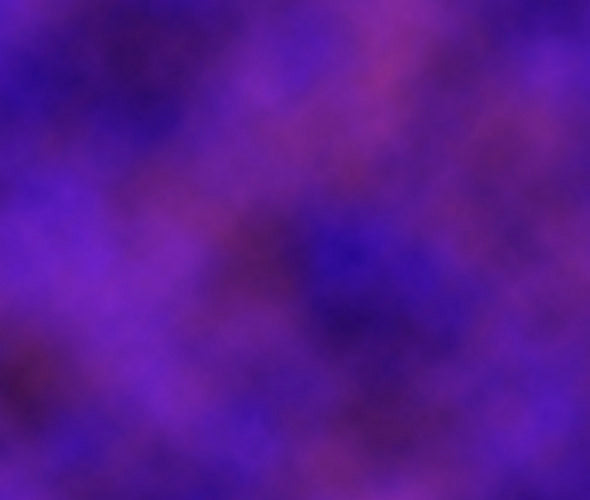
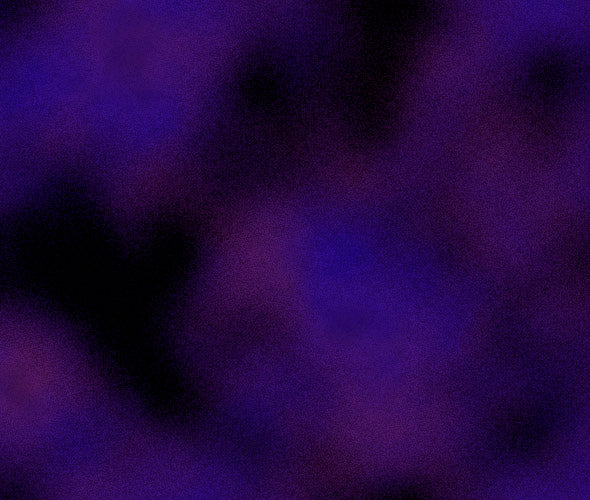
Two cloud layers, with no other filters applied.

Two cloud layers, with no other filters applied.

The same image, but with the Sprayed Strokes filter applied.

The same image, but with the Sprayed Strokes filter applied.

The Diffuse Glow filter gives this result.

The Diffuse Glow filter gives this result.

The Paint Daub filter looks like this, with the Dark Rough brush type used.

The Paint Daub filter looks like this, with the Dark Rough brush type used.

Related Posts

  1. Tutorial: Create a Fantasy Painting with Photoshop and Corel Painter
  2. Tutorial: How to create your own Image Hose nozzles
  3. Tutorial: Preparing a Beach Photo for Painting in Corel Painter
  4. Tutorial: Create Colorful Backgrounds for Your Portraits
  5. Tutorial: How to Create an Anne Geddes Baby Portrait
  6. Tutorial: Nebula Inside a Glass Ball
  7. Tutorial: Painting Clouds with Corel Painter
Stumble it!

Responses

  1. Avril says:

    January 21st, 2009 at 2:48 am (#)

    wow!!! a big thank you, certainly will try this!

  2. Bob Nolin says:

    January 21st, 2009 at 12:13 pm (#)

    @Avril –

    Thanks for the comment – let us know how it works for you!

    Bob

  3. Paddrick says:

    January 23rd, 2009 at 10:17 am (#)

    Bob, this looks great. I use Paint Shop Pro X2. Can you provide a translation for PSP, or tell me how to get the clouds filter effect in PSP? Thanks for your fine tutorial.

  4. Bob Nolin says:

    January 23rd, 2009 at 11:49 am (#)

    @Paddrick –

    Thanks for the comment. Sorry I can’t help you out with Paint Shop Pro. That’s one program I’ve never tried. You might look around for plugins that do something similar. Sorry I can’t be more helpful.

    Bob

  5. Geraldine says:

    February 17th, 2009 at 8:33 pm (#)

    Hi Bob
    Great stuff …. great looking dog too. Thank you for sharing.
    Geraldine

  6. james says:

    October 27th, 2009 at 10:22 am (#)

    Great tutorial,if only I had photoshop,I wonder if anyone out there knows how I can do this in a free online photo editor,,,,would appreciate any ideas,,,

  7. Brian says:

    March 1st, 2010 at 11:38 am (#)

    Great way to build a back drop Thanks.
    Once it is complete how do you get the marching ant to stop? I clicked on return and everything cant figure that one out.
    Also where else can I go for more great tips like this one?
    Thanks

    Brian

  8. Bob Nolin says:

    March 1st, 2010 at 11:45 am (#)

    Brian –

    To deselect in Photoshop, type CMD+D (Mac) or CTL+D. AS for other tips, I invite you to explore this very blog! There are a lot of tutorials here. Also, check out the Resources and Links page for other sites.

    Enjoy –
    Bob

Leave a Response

Subscribe without commenting

A Work of Art Studio


A Work of Art Studio