

Tutorial: Painting Curly Hair in Corel Painter

February 17th, 2009  |  Published in Featured, Tutorials  |  12 Comments

Curly hair can be intimidating, but it doesn\'t have to be. Just break it into shapes of dark and light, as this tutorial shows.

Curly hair can be intimidating, but it doesn't have to be. Just break it into shapes of dark and light, as this tutorial shows.

When it comes to painting portraits, faces are definitely the hardest part. But running a close second has got to be hair. It’s so complicated! There’s so much detail! Today we’re going to tackle curly hair, the most difficult kind of hair there is. We’ll break it down, step by step, and by the end, I hope, you’ll have lost your fear of the Big Hairy Monster.

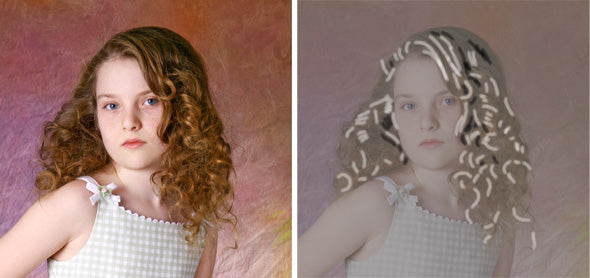
The original photo shows a very complex head of hair. On the right, I show how I break it down into areas of dark, light, and midtone.

The original photo shows a very complex head of hair. On the right, I show how I break it down into areas of dark, light, and midtone.

One of the tricks I learned in art school is squinting. Squint your eyes at the original (above, left), and you’ll see the detail drop away somewhat. The highlights and darks will stand out when you squint. I’ve tried to do something similar by overlaying the image with a middle grey tone (above, right). The light and dark squiggles represent the first stage in painting the hair. The idea is to simplify the hair into just three values: dark, light, and middle grey. Place all these values in by painting right over what’s there, and then, in the second step, blend these areas into each other. Let’s take it a step at a time.
Step One: Place the highlights

Use a Captured Bristle variant (in the Acrylics category). Make sure you are not cloning color (the “rubber stamp” is toggled off). Use an Opacity of about 60%, Resat around 30. Clone your original image (File > Clone). Hold down the alt key to access the eye dropper, and select a color from the brightest area of highlight in the hair. Now, in the color wheel, nudge this color a tad towards white. You will paint over all the highlights you can see, and pull out areas that are not quite highlights, using this one color. Don’t worry about being accurate or neat, just paint quick strokes with your stylus. Here’s what it looks like at the end of Step One:
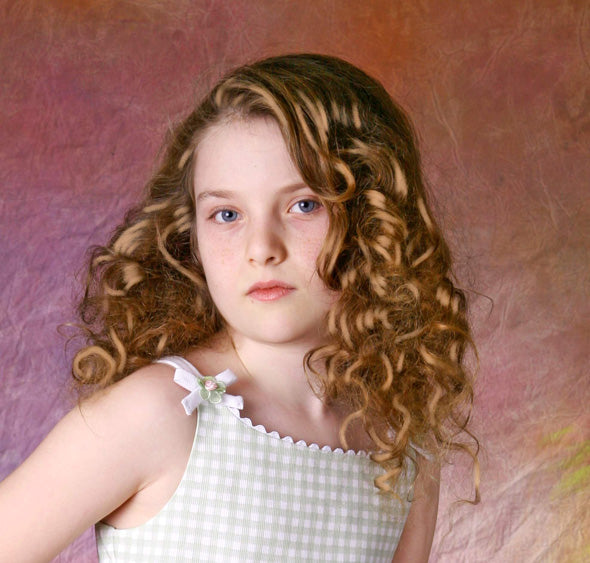
In Step One, all the highlights are painted over with a single color, with quick strokes.

In Step One, all the highlights are painted over with a single color, with quick strokes.

Step Two

Now use the eye dropper to select a dark area of the hair. You can move it towards the blue side of the color wheel if you like. With this dark, paint in the dark masses. There aren’t a lot in this image. Another trick from art school: place darks against lights. This is what makes the highlights sparkle and shine. Again, don’t labor over this step. Work quickly, and do less than more.
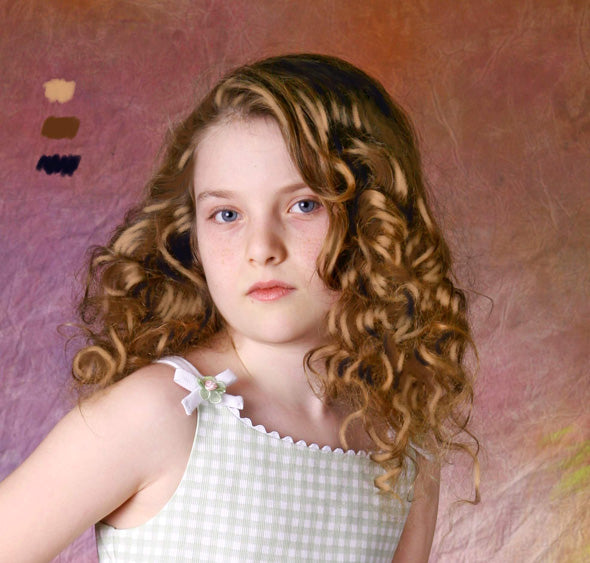
In Step Two, the darkest areas are painted in. Note the color swatches in the upper left. These are the three colors I used.

In Step Two, the darkest areas are painted in. Note the color swatches in the upper left. These are the three colors I used.

Step Three

With the eye dropper, pick a middle value. Look at the color swatches in the image above to see the values I used. The middle value should be what is known as “local color”. It should be the color of the hair in a midtone range. Use this color to overlay a good amount of the detailed area lying between the lights and darks you’ve painted. There’s no hard and fast rule for this part, and you could skip it altogether and just begin blending at this point. But I do this to help me define the masses of hair, to make them into shapes. As you can see, this poor girl’s hair was not cooperating for her photo session! So I painted it into shape, so to speak. Don’t spend too long here. Most of the work takes place in Step Four.

Step Four
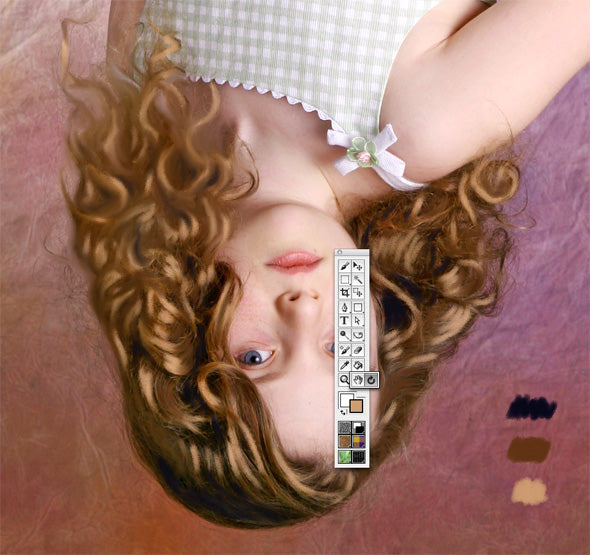
Turning the painting can be helpful.

Turning the painting can be helpful.

Painter allows to rotate your canvas (something Photoshop doesn’t do). This can be really helpful when you find your strokes running at an odd–even somewhat painful–angle. With a traditional painting, you’d simply turn the canvas. You can do the same with Painter. In the image above, notice that I’ve clicked on the “hand” tool in the toolbox. It shares a space with the turning tool, which looks like an arrow doing a u-turn. Click once on the curving arrow, and now click on the canvas and move the mouse while holding down the button. To move the canvas back to the original position, just double-click on the canvas (click on the curved arrow first). For complicated areas like the hair, or a grove of trees, it can be helpful if you are a bit disoriented. It’s yet another trick, I guess. You won’t be quite so critical of your work if you’re just painting a bunch of shapes. Try it and see if it works for you. Anyway, the painting method for Step Four is this: lower the Resat value of your Captured Bristle all the way down to zero. Now it’s a blender brush. Paint over the three tonal areas, and blend them together slightly where their edges meet. In the image above, I’ve only painted the area on our left. The rest is still at Step Three. Just keep going, don’t listen to that voice in your head that says “This is a mess!” When you have done the entire hair, turn it right-side up. I think you’ll be pleasantly surprised. Good luck!

Related Posts

  1. Tutorial: Painting the Eyes with Corel Painter
  2. Tutorial: An Easy Pet Portrait in Pastel with Corel Painter
  3. Tutorial: Basic Portrait Painting Technique for Corel Painter
  4. Tutorial: Painting Clouds with Corel Painter
  5. Tutorial: How to Use a Line Drawing with Corel Painter
  6. Tutorial: Painting Alla Prima with Corel Painter
  7. Tutorial: Get Creative with Layer Masks in Corel Painter
Stumble it!

Responses

  1. jsd says:

    February 18th, 2009 at 8:56 am (#)

    “Painter allows to rotate your canvas (something Photoshop doesn’t do).”

    Photoshop certainly does allow us to rotate as necessary.

    Jordan

  2. Janine says:

    February 18th, 2009 at 12:25 pm (#)

    This is a GREAT tutorial. The hair looks so soft and natural after you were finished – much better than the hair at the beginning. I really like your ideas of squinting and working on the canvas in another position. I appreciate you taking your time to give us all this information. Thank you for sharing your talents and being so generous.

  3. Bob Nolin says:

    February 18th, 2009 at 12:37 pm (#)

    @Jordan – You’re right, Photoshop does have the Rotate Canvas option, sorry about that. It requires you to enter a specific number of degrees, and because of that I almost never use it. The curved arrow tool in Painter is so natural to use, like shifting the paper on your desk to get a better angle. And it works while cloning, which is great: it doesn’t “lose track” of the cloned image, even when tilted. However, Painter’s Rotate Canvas command (Canvas > Rotate Canvas) does NOT. If you’re cloning, use the “turn” tool, instead.

    @Janine – Thank you so much! I enjoy sharing what I know, and it’s gratifying to hear that people find it helpful. Thanks for taking time to comment.

  4. Avril says:

    February 18th, 2009 at 7:15 pm (#)

    Thank you so much…I am busy doing a painting with messy curly hair, so this is going to be such a great help..
    A BIG THANK YOU!

  5. Bob says:

    February 19th, 2009 at 10:57 am (#)

    @Avril –

    That’s great to hear! Thanks for letting me know, and being so supportive of Digital Image Magazine. I appreciate it!

    Bob

  6. Jill says:

    February 21st, 2009 at 6:30 pm (#)

    Hi Bob,
    I just found this website. It has a lot of interesting information.
    I recognize this curly headed girl from class = )
    Your doing such a great job learning the techniques.
    see you in class!
    Jill Garl

  7. Janet says:

    May 2nd, 2009 at 7:34 pm (#)

    Just learned of your website. I love your tutorials. They are great and easy to follow.
    Janet Kinney

  8. Bob Nolin says:

    May 3rd, 2009 at 11:15 am (#)

    @Janet –

    Thank you! And thanks for signing up for the weekly email newsletter. It’s so nice to hear that the tutorials are helpful. Makes it all worthwhile.

    Bob

  9. Rod says:

    May 27th, 2009 at 3:14 am (#)

    Actually, Photoshop _does_ allow rotating the canvas without having type in the number (in degrees) for rotation.

    All you need to do is hold down the “R” key (Rotate View tool) and then move the mouse/styles back and forth and the image can be rotated to whatever angle you like, without having to type in any numbers.

  10. Rod says:

    May 27th, 2009 at 3:15 am (#)

    Oh and I should also point out – great corel tute – still learning my way with painter and your info was most useful :)

  11. Heidi Conover says:

    February 2nd, 2010 at 9:17 pm (#)

    Thank you for all of the tutorials. I just got Painter 11 a week ago and am somewhat overwhelmed with it. Thank you for helping me crack the code on eyes and hair. I need more practice, but can see improvement. My daughter has blond curly hair and, yes, it is really hard to paint! Thank you for everything. Your tutorials are really great.
    Heidi

  12. Trackbacks says:

    March 10th, 2010 at 7:55 am (#)

Leave a Response

Subscribe without commenting

A Work of Art Studio


A Work of Art Studio